How to Read Messenger Messages without Seen #2
A read receipt on Facebook Messenger can promote communication transparency, but some people aren’t ready to respond, prefer not to engage immediately, or need more time to gather information without the sender knowing they’ve seen the message.
So, how to read Messenger messages without seen? This post will walk you through 7 workable ways to read a Facebook message without being seen. Let's get into the essentials!
| Methods | Available on | Simplicity | Disable Read Receipts on Messenger | Android, iOS | ⭐⭐⭐⭐ |
| Preview Messages from Notifications | Android, iOS | ⭐⭐⭐⭐⭐ |
| Use Facebook Web Version | Android, iOS, Web for PC | ⭐⭐⭐⭐ |
| Restrict and Unrestrict the Sender | Android | ⭐⭐⭐⭐ |
| Long Press to View | iOS | ⭐⭐⭐⭐⭐ |
| Activate the Airplane Mode | Android | ⭐⭐ |
| Use a Chrome Extension | Web for PC | ⭐⭐⭐ |
(These methods are checked and tested by Elsa in 2024.)
Method 1. Disable Read Receipts on Messenger
As mentioned earlier, Facebook has this feature embedded in the chat box. Therefore, the key to reading messages without being seen is to turn off read receipts on Facebook Messenger.
How to turn off read receipts for all chats on Messenger:
- 1.On Messenger, tap the three lines in the top-left corner and go to "Settings."
- 2.Select "Privacy & safety", then "Read receipts."
- 3.Toggle off the "Show read receipts" switch.
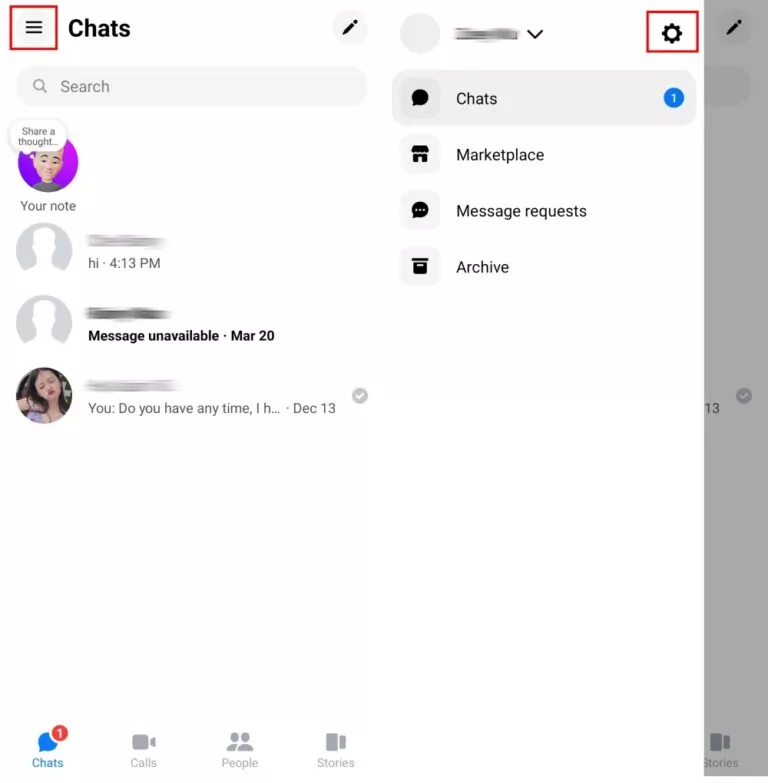
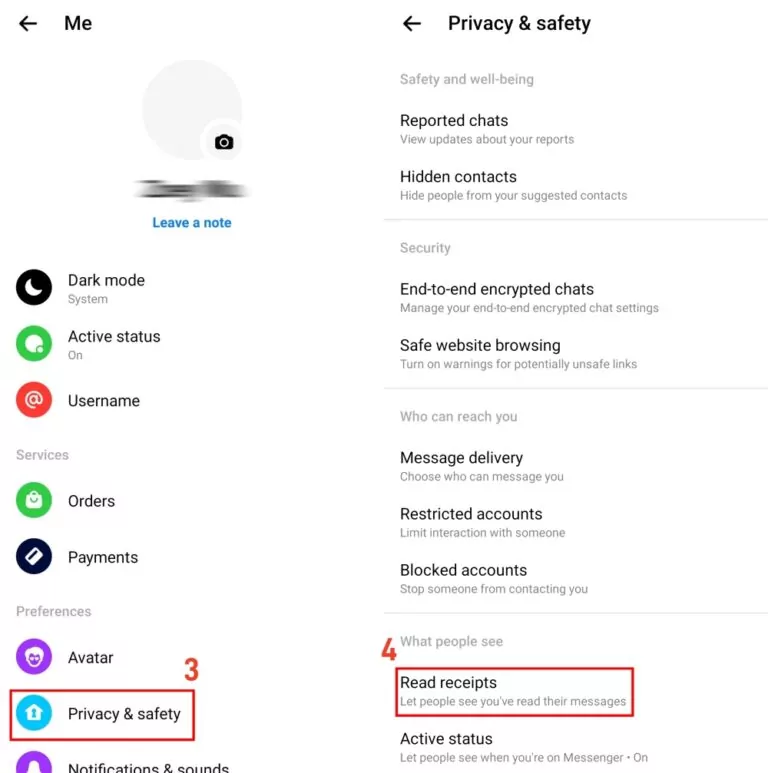
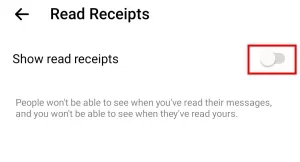
Steps about to turn off the read receipts on Messenger can apply to all the chats, so don’t forget to turn on read receipts again when you are ready to instantly engage with your friends.
If you want to turn off read receipts for specific senders, you can do that one by one with these steps:
- 1.Tap into the chat you want to disable read receipt, and tap on the profile image/name on the upper left.
- 2.Scroll down and tap ‘Read receipts’ under the ‘Privacy & support’ section. Then toggle off ‘Show read receipts’.


By doing so, you can read Messenger messages without seen for this specific chat.
Method 2. Preview Messages from Notifications
This is one of the most straightforward ways to read a message on Facebook without opening it. Anyone who uses Facebook on Android or iPhone gets a notification whenever they receive a message. Therefore, you can read a portion of the message from that notification without the sender knowing.
Now, just swipe down from the top of your phone screen to access the Notification panel and read the Facebook messages.
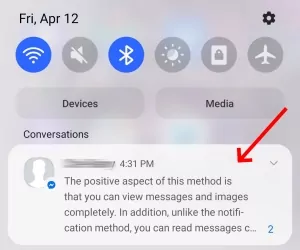
This method works for most short messages. However, if it’s a long message, some devices only show part of the message (such as iPhone 11 I’m using), but some devices can still see the whole message from the notification panel (such as Samsung Galaxy S20+ I’m using).

Method 3: Read Messages without Seen on Facebook Web
The Facebook web version also allows you to send and receive messages with friends, and there is a trick that lets you to read Facebook messages without seen using the web version. This method allows you to read the all the new messages without being seen even if you scroll up and down.
- 1.Log into facebook.com on your computer, and stay still on the home page.
- 2.When you receive a new message, a chat window will pop up at the bottom right.
- 3.Please DO NOT click the chat window, and just read the messages. You can also scroll up and down if there are multiple messages, and this won’t send the seen status to the sender.

Method 4. Restrict and Unrestrict the Sender
To see messages in Messenger without seen, you can utilize the Restrict feature of Messenger. Here's how you can do so:
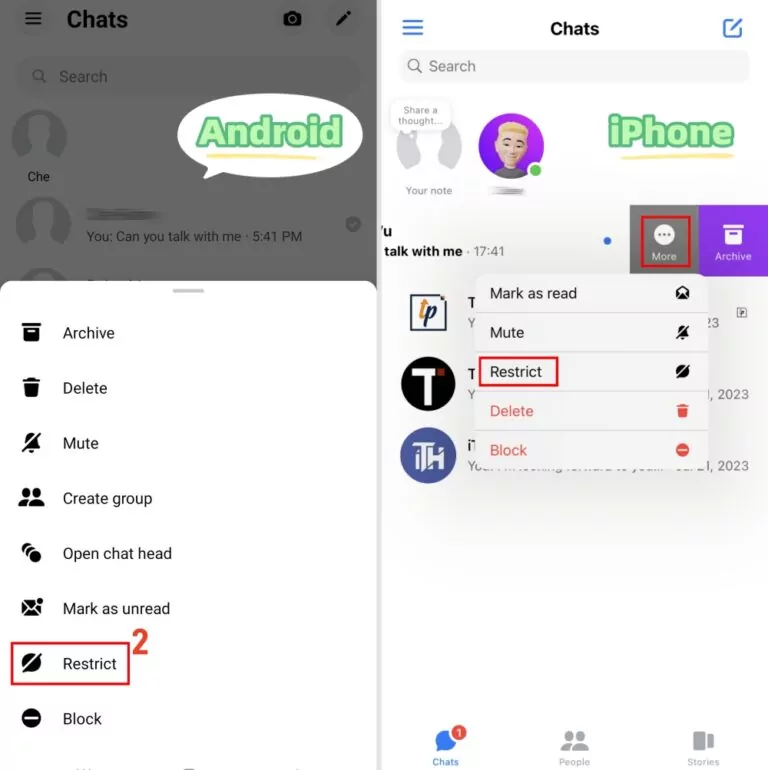
- Step 1.Restrict the New Chat
- On Messenger, long press the new chat and select "Restrict." iPhone users need to restrict the chat by swiping left across the targeted chat.
- Step 2.Read the New Messages without Seen
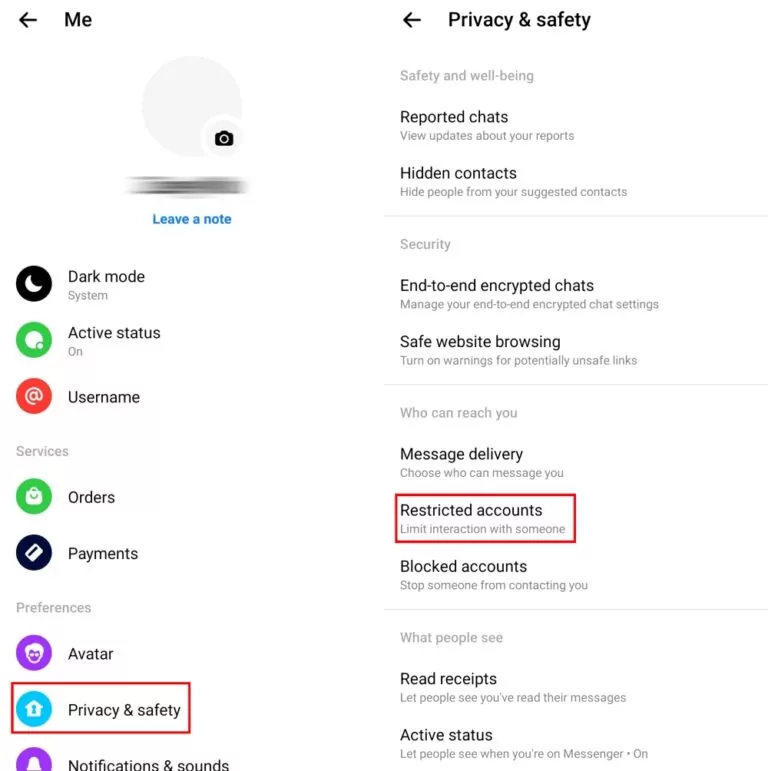
- 1. Tap the three lines and go to "Settings."
- 2. Go to "Privacy & safety," then "Restricted accounts."
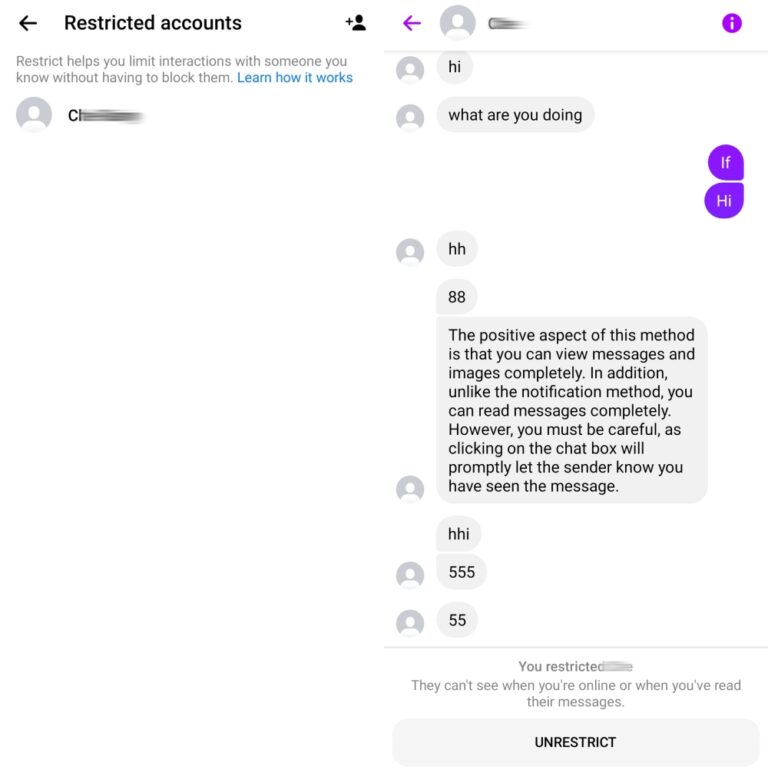
- 3. Tap the account you restricted.
- 4. Now, you can read all messages from this user. Meanwhile, the sender won't see the "Seen" status.
- Step 3.Unrestrict the Chat
- After this, don't forget to click on "UNRESTRICT", otherwise, you can't find and receive this sender's messages again.
Method 5. Long Press to View
If you are an iOS user, do you know you can preview the chat window by long-pressing the conversion in Messenger? By using this trick, the sender won't get notified of you reading the messages. Here's how to read Messenger messages without seen on iPhone:
- 1.Tap and hold the chat with a new message received.
- 2.On the pop-up window, you can view the message without opening it.

Method 6. Activate the Airplane Mode
When there is no internet connection, you can freely view Messenger without seen. You only have to turn on the Airplane mode of your device and then clear the cache of Messenger. Now, I'll guide you step-by-step:
- 1.Enable the Airplane mode from the Quick Settings.
- 2.Open and read messages in Messenger.
- 3.Back to the home screen and long press the Messenger app.
- 4.Tap "App info" and then head to "Storage."
- 5.Press "Clear data" and "Clear cache."
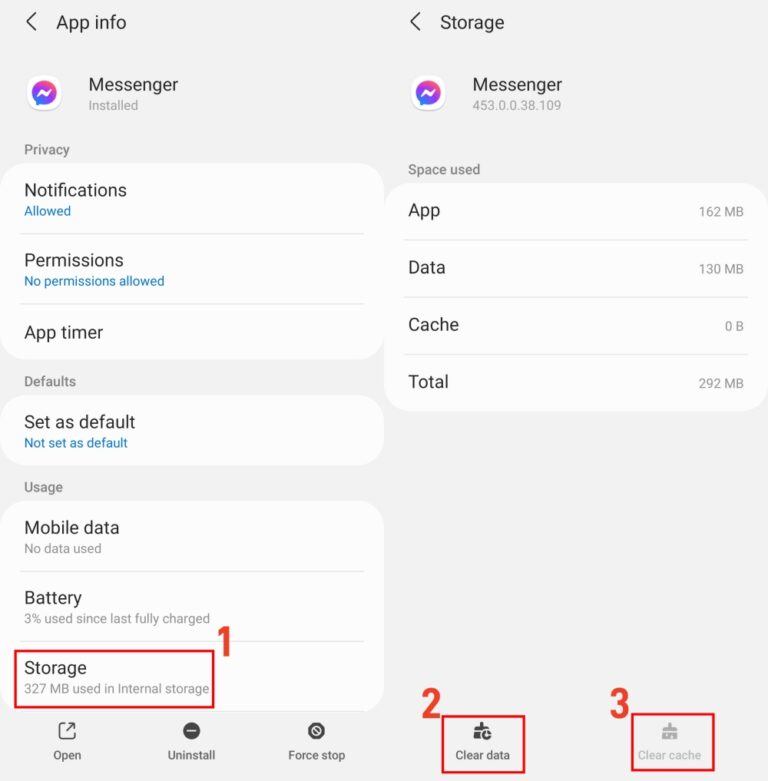
After this, when you return to Messenger, the message you read will still be "unread" on the sender's chat view.
Method 7. Use a Chrome Extension
If you prefer using Facebook and Messenger from your browser, then you're in luck! Web extensions are viable when you want to read messages on Facebook without being seen.
There are several extensions available for this purpose. However, "ESUIT | Un Seen for Facebook" is the most effective one I used. Follow the steps below:
- 1.Go to "ESUIT" in your Chrome browser.
- 2.Click "Add to Chrome". After this, it appears on the top right of Chrome.
- 3.Now, open facebook.com or messenger.com.
- 4.You can see all received messages without being seen.
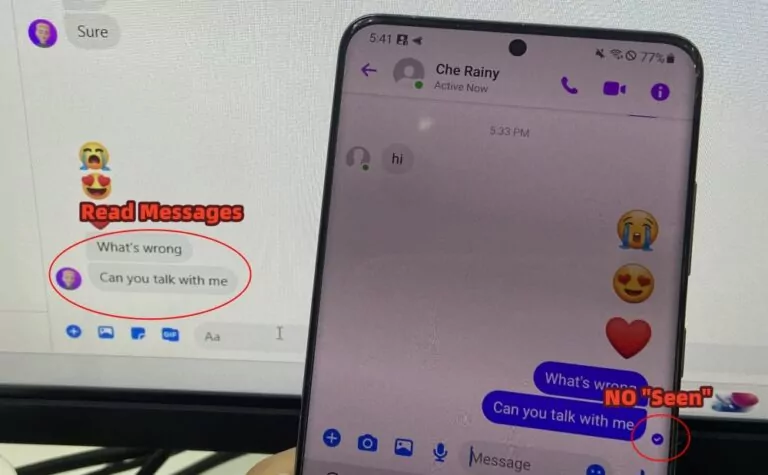
Using a browser extension will allow you to read Messenger messages without seen even if you click on the chat window, which means you can click any where on the chat window and it won’t send the read receipts. And still, it will definitely send the read receipts if you reply to that message.
If you are using Firefox, you are out of luck because we have tested several extensions on Firefox such as FB unseen or similar and most of them stop working.
Method 7. View Messenger Messages without Seen via AirDroid Parental Control
Using some third-party parenting apps, such as AirDroid Parental Control, is an ideal way who wants to read the Messenger messages without seen. When you receive Messenger message, it can be synced from the AirDroid Kids app to the Parent Control app for you to read, and it works even for the long messages.
- 1.Install AirDroid Kids app and Parent Control app on your device. Ensure to log in two apps with the same account.
- 2.Then complete the setup by following the on-screen prompts.
- 3.When you receive new messages from Messenger (or Snapchat, WhatsApp, and more), open Parent Control app, and tap “Notification” to see all the messages your device receives.
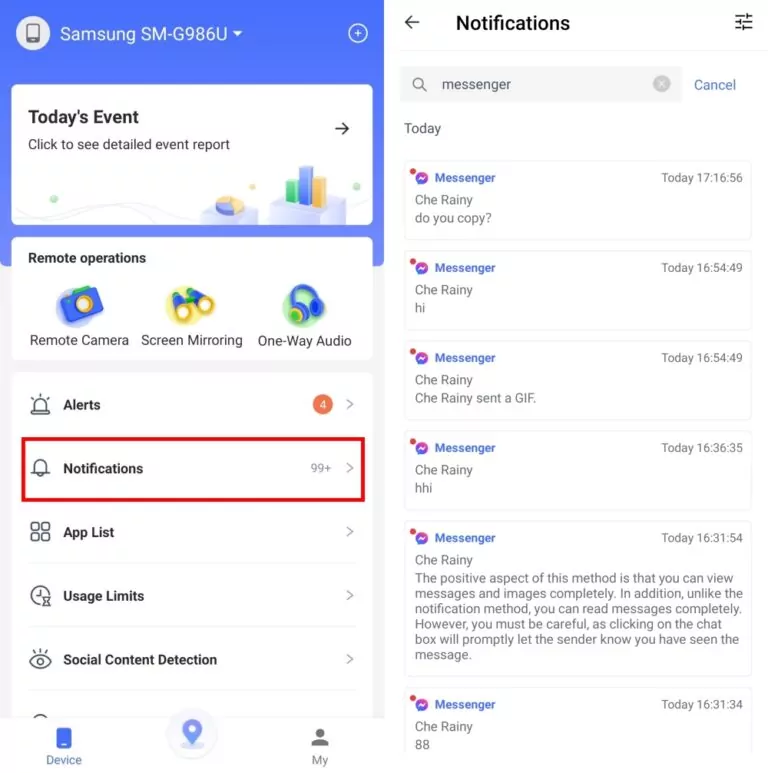
It will also show the full long text message. However, if you receive a sticker, gif, or image, it won't show what it exactly is but just a preview.
Final Thoughts
Now, try it yourself to open Facebook messages without seen. All seven methods are 100% working and proven by me. We have also test other solutions (such as archiving the chat or ignoring the conversation) to read Messenger messages but they don’t work as expected.
For instance, if you choose to archive the chat and read the messages in the archive chat, it will trigger the seen status to the sender in most cases. This is working only if the sender send the message from Facebook web, and you archive and read the message on your mobile phone.
If you encounter any questions when trying these ways, please leave your comment, and I'll be glad to help you out! If you're a parent, don't hesitate to try AirDroid Parental Control, which helps you monitor your child's messages with ease.



Leave a Reply.