AirDroid Parental Control & SMS Tracker
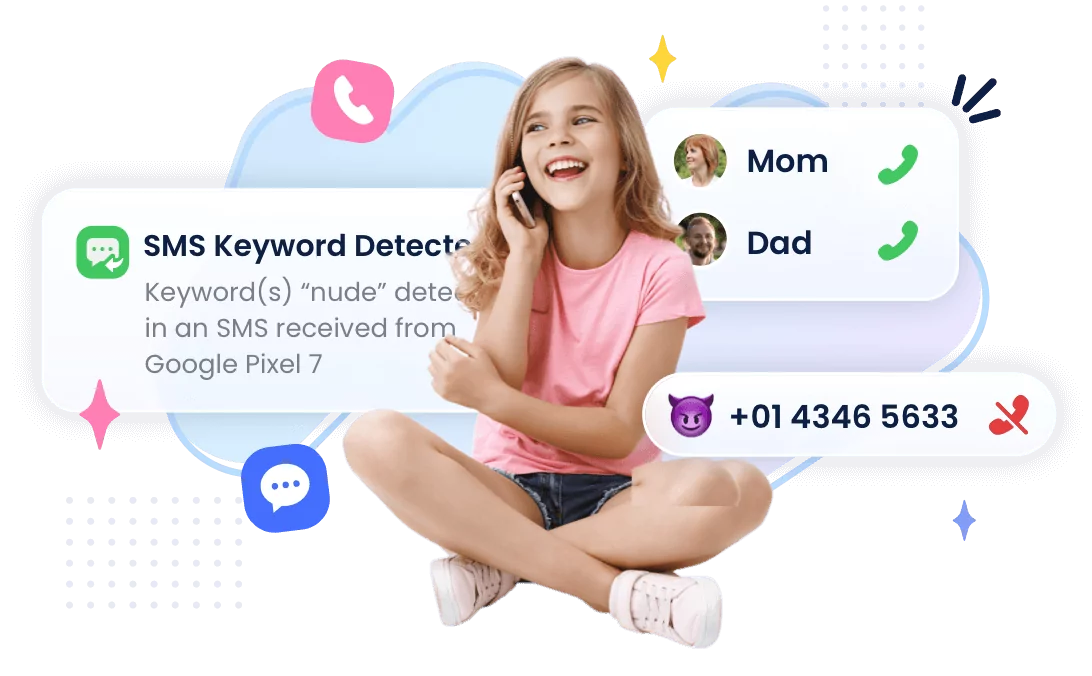
Monitor SMS content on your child's Android & get instant alerts on your device, and block unwanted calls.
How to Check Messages from Another Phone [Android & iOS]
You may have forgotten your phone at home or work and are wondering how to check messages from another phone. So, is this possible on either Android or iOS devices? Well, YES, it is.
There are several ways you can view text messages sent and received from another phone. Options include using features like Android device sharing, iCloud backup, or even certain apps designed specifically for the task. Checking messages from another phone is very useful as it saves you the time and hustles you could have faced looking for that phone.
Moreover, reading messages on another phone can provide a way to monitor your kids' messages. It is a effective way that parents use to ensure their children's online interactions with others are safe.
So, how exactly can you check messages from another phone? Let's see!

Part 1: Check Messages from Another Phone with Google Messages for Web
Google Messages is a text messaging application developed by Google that can be very useful If you're planning to check your messages on other phone.
Well, let's start with the easy and nice option: Google Messages for Web.
Set Up Google Messages for the Web
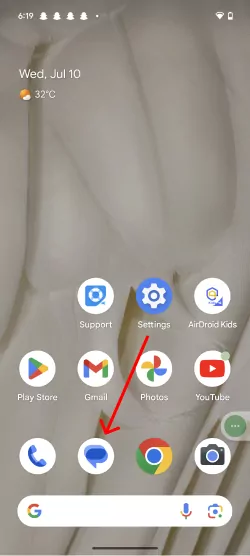
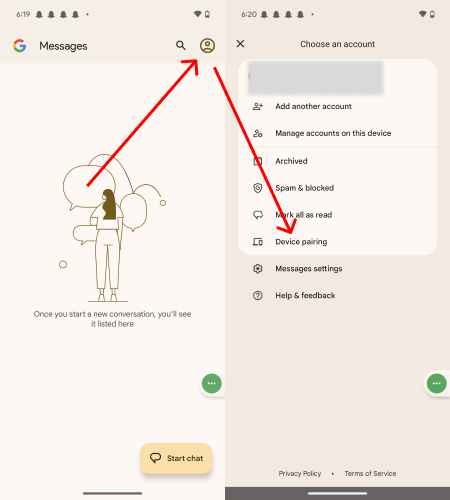
- Step 1、Open the Messages app on the target Android phone.
- Step 2、Click on the personal symbol in the upper right corner,Find "Device Paring" and tap on it.
- Step 3、After that, open "Messages for Web" on your computer browser (i.e., Chrome or Safari).
- Step 4、After logging in, tap "More" (three vertical dotted lines) and then toggle on Remember this device. Alternatively, you can automatically check "Remember this computer" to pair the messages.
- Step 5、On the web page, a QR code will be displayed; use your phone to scan by tapping "Scan QR Code." Hold it while it scans until the phone vibrates, and then you're all good.

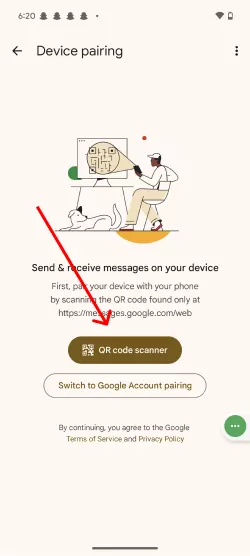
Important Things to Note about QR Codes for Messages
- You can link your messaging app across multiple devices, but only one can be active at a time. Activating it on your PC renders conversations on other devices inactive.
- For security reasons, your message accounts will be unpaired from other devices if you fail to use them on those devices for a few weeks.
- You will incur currier fees if you choose to send a text using your computer, just like you would have when using the messages app on your phone.
Overall, for this feature to work, you will need:
| On Phone | On Computer |
|---|---|
| Cellular data or Wi-Fi connection | Internet connection |
| Android 5.0 or higher | A web browser - You can choose Mozilla Firefox, Chrome, Microsoft Edge, or Safari. |
| The latest version of the Message app |
Part 2: Check Messages from Another Phone with AirDroid Parental Control
Want to check messages from another Android phone but you're using an iPhone? Don't worry, AirDroid Parental Control is here to help. After a quick pairing, you'll be able to easily link your other phone to view its messages.
Additionally, as the name suggests, AirDroid Parental Control is also a professional parental control app. This app can help you monitor whether your kids are receiving inappropriate text messages on their Android phones.
With this app, you can confidently track whom your children are chatting with and get to read their phone text without their phones. It is very useful that ensures you have better security for your kids and helps them build healthy digital habits.
This app is available for a free trial if you want to try it, and is user-friendly and easy to use.
Why Choose the AirDroid Parental Control app?
In addition to the synchronised notification and SMS features, there are these features to protect your child's online life and prevent cyberbullying:
a) Social Content Detection : Monitor your child's social media for specific keywords to trigger instant alerts and activate content filtering.
b) Managed Browser : Track your child's internet activity, manage allowed websites with a whitelist, and choose to block specific or category-based sites. Set the browser to Whitelist, Block, or Unrestricted Mode, and get alerts for attempts to visit blocked sites.
How to Use AirDroid Parental Control App
- Step 1、Download AirDroid Parental Control to your mobile phone via App Store or Google Play Store.
- tips: You can also use the web version if you prefer to operate it on your computer.
- Step 2、Install AirDroid Kids on the target Android phone and pair the devices.
- Step 3、After that, once a message has been sent to the target phone, you can check it in Notifications.
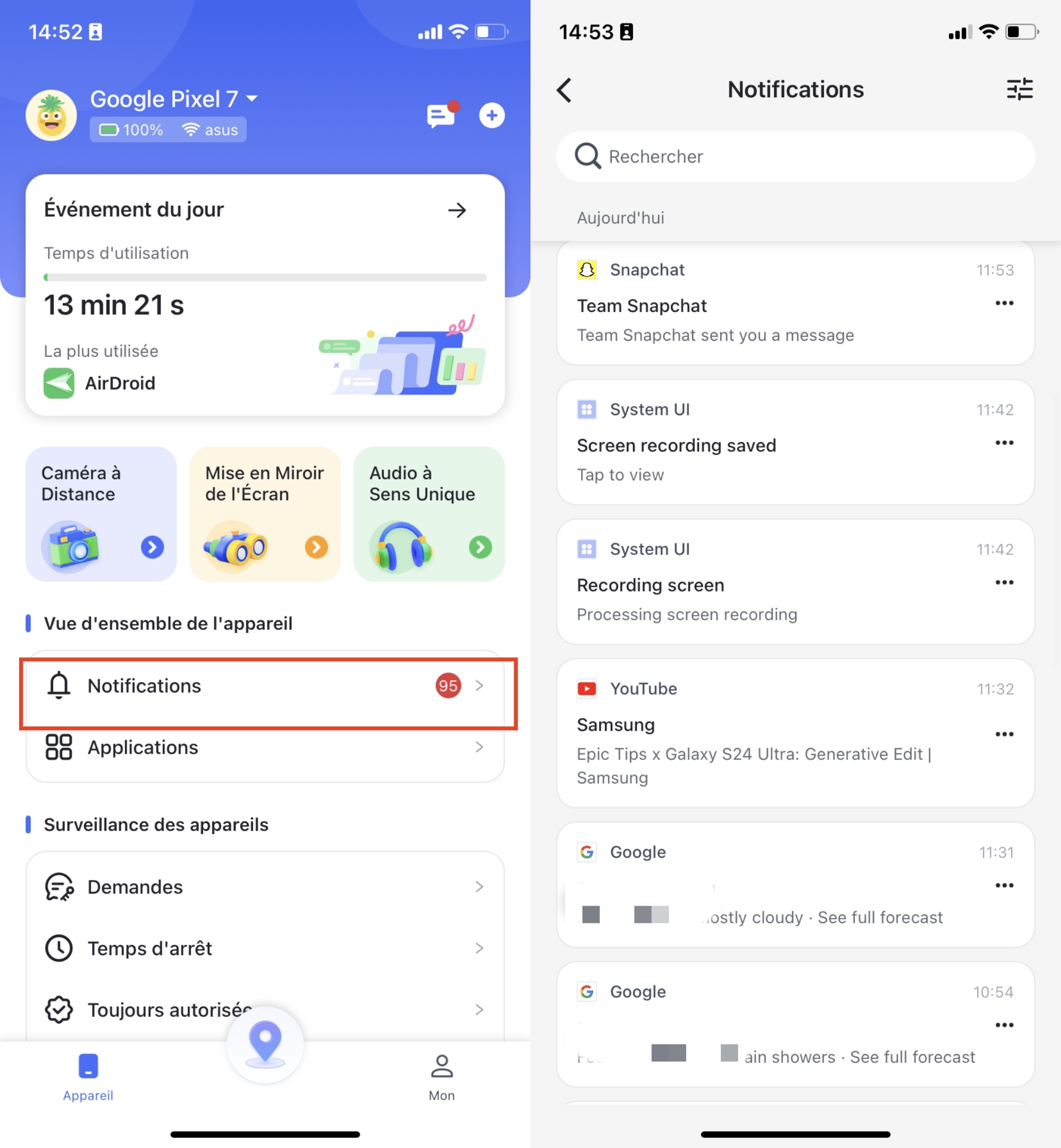
Check out the user guide for a full guide on using several of this app's features.
Part 3: Read Text Messages on Another iPhone via Text Message Forwarding
Text Message Forwarding is an excellent feature on iPhone that allows text messages to sync across all Apple devices connected to your Apple ID. This means you can view text messages sent and received from another iPhone on your devices, including iPhone, iPad, Mac, or iPod Touch.
Set Up iPhone Text Message Forwarding
Step 1. Open "Settings" on your iPhone. Scroll down and tap 'Messages'. Make sure that 'iMessage' is turned on.
Step 2. Tap on "Text Message Forwarding." You'll see a list of devices linked to your Apple ID.
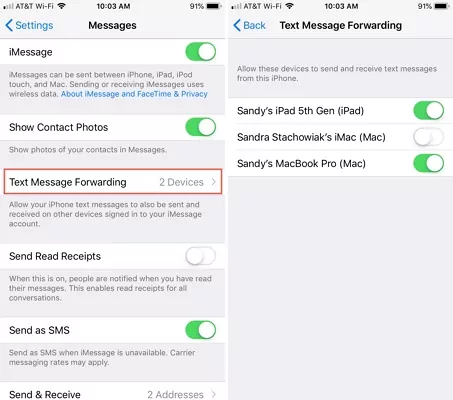
Step 3. Choose the device where you want to receive your text messages. Turn on the switch next to it. You might see a prompt asking for a code.
Step 4. Check the screen of the device you selected. A code should appear. Enter this code on your iPhone.
Part 4: View Text Messages from Another iPhone through iCloud
Backing up iPhone text messages on iCloud provides a safe space for your valuable conversations and allows you to view these text message from another iPhone. Whether you're keeping important chats or transferring messages to your new iPhone, iCloud makes it a seamless process.
Back up Messages on iPhone with iCloud
Step 1. Go to "Settings," click your name, and select "iCloud."
Step 2. Scroll down to "Apps using iCloud," and click on "messages."
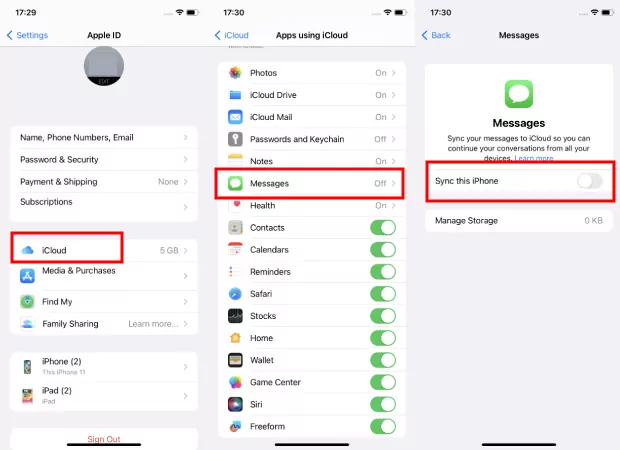
Step 3. Turn on "use on this iPhone"
Step 4. To read these messages from another iPhone, sign in to iCloud with the same Apple ID you used for the backup. Choose the backup you made earlier.
Part 5: See Text Messages on Another Phone with the monitoring software
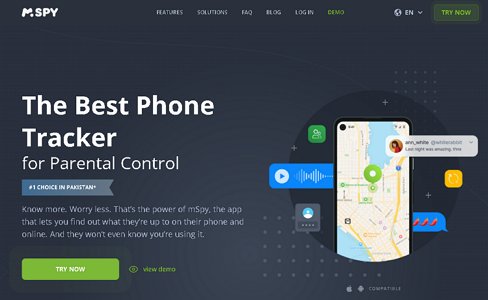
mSpy is a monitoring software that you can view text Messages of other's text messages, the location of the device and even call logs by downloading application on both your device and the device to be monitored.
Part 7: Important Facts to Note about Reading Someone's Text Messages Without Their Phone
Well, now you know a few ways to check messages from another phone. before you do this, there are several basic facts that you should know when opting to do this, as it may save you some problems. These facts include things such as:
- For the most successful app that will provide all the information you need from another phone while ensuring security, you must install the application on at least one phone. For some, you will have to install it on both phones.
- To view and read messages from other phones, you will need an internet connection on both phones.
- Reading someone's text messages without their phone may also be legal issues. So If you are using it to ensure your child's safety, it is recommended that you choose an app only check the messages they receive on their phone.
Conclusion
We covered six effective methods on how to check messages from another phone. Reading someone's messages without their phone is very beneficial, especially when you want to determine what they are up to.
Furthermore, this ability is essential for the parent, as well as it allows you to monitor your kids' activities and protect them against online scammers or predators. Our recommendation tool, AirDroid Parental Control, allows parent to instill healthy phone habits since they can limit screen time as well as apps that their children can access.




Leave a Reply.