This is "location drift." Causes include poor GPS signal indoors, uncalibrated compass, magnetic interference from phone cases, or battery optimization pausing updates. Calibrate your compass (Part 2, Step 5) and check for interference.
1-Tap Child Safety Online: AirDroid Parental Control
24/7 Protection & Peace of Mind
- 🔍Advanced Control with Remote Camera and Screen Mirroring.
- ⚠Social Media Monitoring and Risk Detection.
- 🚫App Blocker + Screen Time Schedules.
- 📍Live Location Tracking + Geo-Fences.
Google Maps Location Wrong? 8 Fixes That Actually Work (Tested by Parents)
Your kid says they're at the library. Google Maps says they're three blocks away at a convenience store. Or maybe you're navigating and your blue dot keeps jumping around like it's had too much coffee.
I've been there. Spent two hours on Reddit trying every "fix" I could find. Turned out my daughter's Xiaomi phone was killing Google Maps in the background after 3 hours—every single day. The school said she arrived, my phone said she was still on the bus.
Here's what actually works, sorted by how likely it is to fix your problem. No fluff. Just the stuff that moved the needle for real people.
Part 1: 2-Minute Check: What's Actually Broken?
Before you waste an hour, figure out what kind of problem you have:
Quick Test: Open Another Map App
Grab Apple Maps, Waze, or whatever else you have. If all apps show you in the wrong place, it's your phone's GPS or settings. If only Google Maps is wrong, it's probably just Google Maps being weird (cache or permissions).
Quick Test: Check If It Works on Wi-Fi Only
Turn off Wi-Fi, use mobile data. Location still wrong? Probably not a network issue. Location suddenly works? Your carrier might be blocking GPS assistance data.
The "Is My Phone Broken?" Test
Download GPSTest (Android) or GPS Diagnostic (iPhone). Stand outside, away from buildings. You should see 8+ satellites. If you're seeing 3 or fewer, your GPS antenna might be toast—common after dropping your phone.
Where to go next:
- All apps wrong → Start with Part 2
- Only Google Maps wrong → Skip to Part 2, Step 6 (clear cache)
- Kid's phone stops updating after a few hours → Part 3 (this fixes 80% of parent complaints)
- Less than 4 satellites → Your phone needs repair
Part 2: Fixes That Actually Work (In Order of Impact)
8 solutions tested by parents | Last verified: April 2025
I'm listing these by impact, not by how easy they are. The easy stuff is rarely what actually fixes it.
1. Location Services: Set It to "Always" (Not "While Using")
This is the #1 reason location sharing stops working. "While Using" means when the app is open on the screen. For location sharing to work when the phone is in a pocket, you need "Always."
I talked to a mom who spent 20 minutes panicking outside her daughter's school. Maps showed the kid was still at the library across town—where she'd been studying three hours ago. Phone went straight to voicemail. Turns out she'd turned off Location Services at the library to save battery, walked to school, but the map was stuck showing the old location.
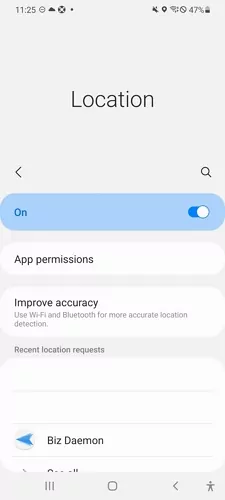
Android
-
Open Settings, search for Location.
-
Tap App permissions (or Permission manager).
-
Find Google Maps, tap it.
-
Select Allow all the time.
-
Make sure Precise location is turned on.
iPhone
-
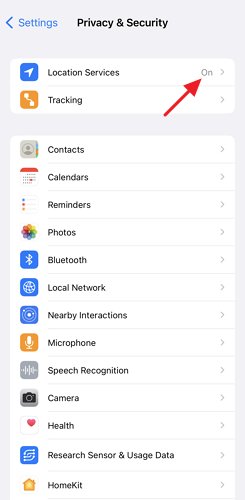
Settings > Privacy & Security > Location Services.
-
Scroll down to Google Maps.
-
Select Always.
-
Turn on Precise Location.
2. Turn Off Battery Optimization (The Real Culprit)
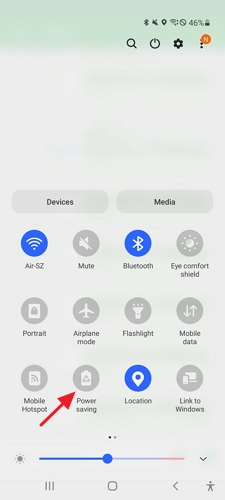
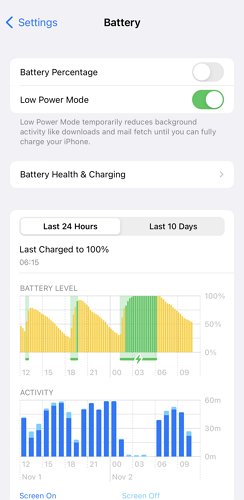
Your phone is "helpfully" killing Google Maps to save battery. This is why your kid's location shows them at school at 3pm when they actually left at 2:30. The phone stopped updating.
Android
-
Swipe down from the top, turn off Battery saver or Power saving if it's on.
-
Settings > Battery > look for Background usage limits (Samsung) or Battery optimization (other phones).
-
Find Google Maps, set it to Don't optimize or Unrestricted.
-
Do the same for Google Play services—this is what actually handles location in the background.
iPhone
-
Settings > Battery, turn off Low Power Mode.
-
Settings > General > Background App Refresh, make sure Google Maps is on.
3. Enable High Accuracy Mode
This lets your phone use Wi-Fi and cell towers alongside GPS. Way more accurate, especially in cities.
My neighbor told me about his son's first subway ride alone—he was waiting at Exit A for 10 minutes because Maps showed the kid had already come up. Turns out the boy was still transferring underground, but tall buildings screwed up the GPS. High accuracy mode fixes this by using Wi-Fi and Bluetooth to fill the gaps.
Android
-
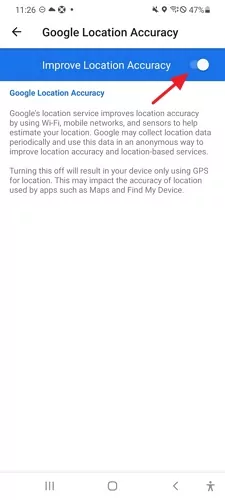
Settings > Location > Google Location Accuracy.
-
Turn on Improve Location Accuracy.
iPhone
-
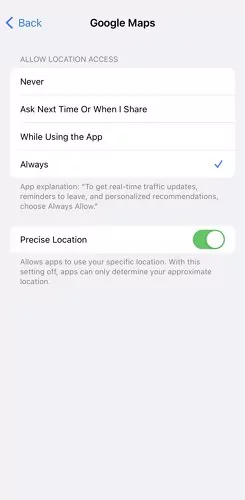
Settings > Privacy & Security > Location Services > Google Maps.
-
Turn on Precise Location.
4. Turn On Wi-Fi Scanning (Even If Wi-Fi Is Off)
Indoors, GPS is basically useless. Your phone can use nearby Wi-Fi networks to figure out where you are—even if you're not connected to them. This can take accuracy from "somewhere in this building" to "third floor, east wing."
Android
-
Settings > Location > Wi-Fi and Bluetooth scanning.
-
Turn on both Wi-Fi scanning and Bluetooth scanning.
Also check: Settings > Network & internet > Data Saver. If it's on, turn it off or add Google Maps to the "unrestricted" list. Data Saver blocks the background data that location needs.
iPhone
iPhone does this automatically. Just make sure Wi-Fi and Bluetooth are enabled in Control Center (you don't need to be connected to anything).
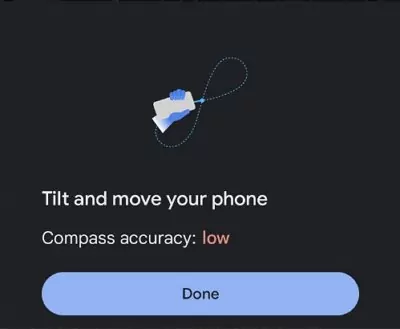
5. Calibrate the Compass
If your blue dot shows the right place but your direction is wrong (you're facing north but Maps says you're facing east), your compass needs calibration.
Android
-
Open Google Maps, tap the blue dot.
-
Tap Calibrate, then wave your phone in a figure-8 pattern.
iPhone
-
Open Google Maps, tap the blue dot.
-
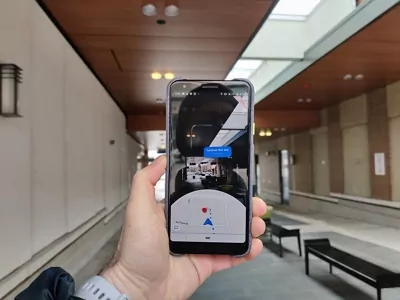
Select Calibrate with Live View.
-
Point your camera at buildings and signs as instructed.
6. Clear Google Maps Cache
If only Google Maps is wrong and other apps are fine, cached data is probably corrupted.
Saw a thread about location lagging—kid gets home 10 minutes before Maps catches up. Top comment: check cache. After a semester of games and TikTok, Google Maps gets bogged down. Worth clearing monthly, especially on older phones.
Android
-
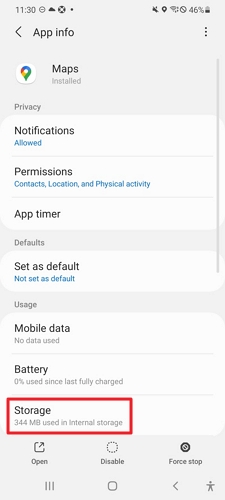
Settings > Apps > Google Maps > Storage.
-
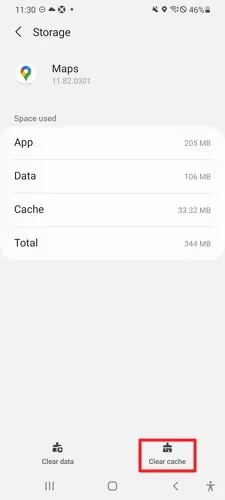
Tap Clear cache.
-
If that doesn't work, try Clear storage (you'll have to log in again).
iPhone
-
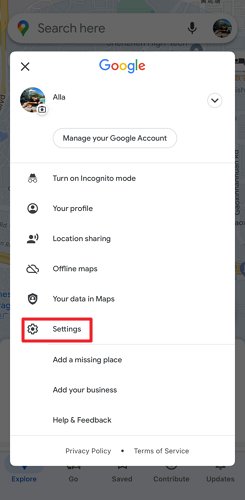
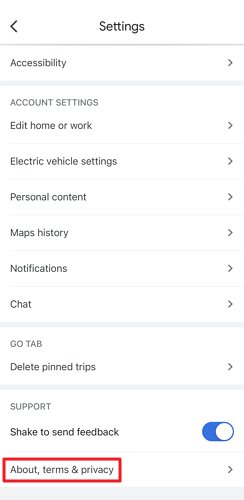
Google Maps > your profile > Settings.
-
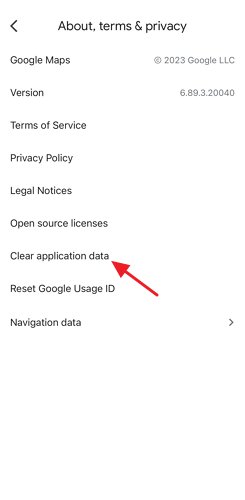
About, terms & privacy > Clear application data.
-
Confirm.
7. Update Everything
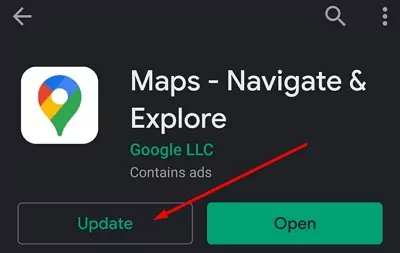
Outdated apps cause weird bugs. Update both Google Maps and Google Play services (Android) or just Google Maps (iPhone).
8. Driving? Check Your Mount
If your location drifts or jumps while driving, it's probably interference.
- Magnetic mounts/cases: These mess with the compass and GPS. Use a non-magnetic mount.
- UV-tinted windshields: Some metallic tints block GPS. Crack a window if you're having issues.
- Phone placement: Cup holders block the sky. Windshield mounts work better.
- Calibrate before you drive: Do the Live View calibration (Step 5) while parked.
Part 3: The OEM Problem (Why Your Kid's Phone Stops Updating)
Chinese phone manufacturers (Xiaomi, Huawei, OPPO, OnePlus) are aggressive about killing background apps. They do it to brag about battery life. Your kid's location works fine for 2-3 hours, then stops until they open Google Maps again.
This is the fix for 80% of "my kid's location sharing stops working" complaints. You need to whitelist Google Maps and Google Play services in your phone's battery settings.
Samsung (One UI)
-
Settings > Battery > Background usage limits.
-
Never sleeping apps > Add apps > add Google Maps and Google Play services.
-
Settings > Apps > Google Maps > Battery > Unrestricted.
Xiaomi (MIUI / HyperOS)
-
Settings > Apps > Permissions > Autostart > enable Google Maps and Google Play services.
-
Settings > Battery & performance > App battery saver > find Google Maps > No restrictions.
-
Open recent apps, long press Google Maps, tap the Lock icon.
Huawei (EMUI / HarmonyOS)
-
Settings > Battery > App launch.
-
Find Google Maps, turn OFF Manage automatically, then enable all three options.
-
Open Phone Manager > Battery, make sure Google Maps isn't restricted.
OnePlus (OxygenOS)
-
Settings > Battery > Battery optimization > tap the three dots > Advanced optimization > turn OFF.
-
Find Google Maps and Google Play services, set to Don't optimize.
-
Recent apps > lock icon on Google Maps.
OPPO / Realme (ColorOS)
-
Settings > Battery > App battery management.
-
Find Google Maps, enable Allow background activity and Allow auto-launch.
-
Phone Manager > Startup manager > allow Google Maps.
Why this matters: If your kid has a Xiaomi, Huawei, OPPO, or OnePlus phone and you skip this step, location sharing will stop working after a few hours. Every time. Source: Don't Kill My App
Part 4: Is Your Kid Faking Their Location?
Sometimes the location is "wrong" because someone is making it wrong. Here's what to look for:
If your child's Maps location is consistently off—showing they're at school when they're actually at home—they may have installed a fake GPS app. These are commonly used to bypass parental monitoring. Look for apps named "Fake GPS," "GPS Joystick," or "Location Changer." Or check Settings > Developer options > Select mock location app. If anything other than "None" is selected, that's your answer.
If you find one, talk to your child about why they're using it before simply deleting it. This often involves social pressure or privacy concerns that need addressing, not just technical blocking.
Red Flags
- Location jumps impossibly fast (home to mall in 30 seconds)
- High accuracy shown indoors (real GPS can't do this)
- Timeline has weird gaps
- Location doesn't match what they tell you (and it's not just a delay)
How to Check for Mock Locations
-
Check Settings > Developer options > Select mock location app. Anything selected = spoofing active.
-
Look through installed apps for "Fake GPS," "GPS Joystick," "Location Changer."
-
Compare Google Maps with Find My Device (Android) or Find My (iPhone). If they show different locations, something's up.
What to Do
Uninstall the spoofing app, disable "Install unknown apps" in Settings > Security, and consider a parental control app that alerts you when mock location gets turned on.
Part 5: PC Browser Fixes
If Google Maps shows the wrong location on your computer:
Allow Location in Browser
-
In Chrome, click the lock icon next to the URL.
-
Set Location to Allow.
-
If it says "Block," click Site settings and change it.
Turn Off Your VPN
VPNs make websites think you're wherever the VPN server is. Disconnect it and refresh Maps.
Clear Browser Cache
-
Chrome: Press Ctrl+Shift+Delete (Windows) or Cmd+Shift+Delete (Mac).
-
Select Cookies and cached images/files > Clear data.
Check Windows/Mac Location Settings
Windows: Settings > Privacy & security > Location. Make sure it's on and Chrome is allowed.
Mac: System Settings > Privacy & Security > Location Services. Make sure your browser is checked.
Part 6: When Nothing Works
Tried everything? Here's what to check:
- Is It a Hardware Problem?
- Download GPSTest or GPS Diagnostic. Go outside. If you're seeing fewer than 4 satellites consistently, your GPS antenna is probably damaged. This happens after drops. Repair costs $50-150.
- Is Google Just Down?
- Check Google's status page or DownDetector. If Maps is broken for everyone, wait it out.
- Consider a Different Tool
- Google Maps is great for navigation, but it wasn't built for family tracking. The arrival alerts are delayed, there's no spoofing detection, and you can't see if your kid's phone is about to die.
- If you need something more reliable, AirDroid Parental Control is built specifically for this. Instant geofence alerts, mock location detection, battery status, and 30-day location history. It's what I ended up using after getting tired of Google Maps' quirks.


Quick Answers (FAQs)
Why does my location jump around on Google Maps?
Why does Google Maps show my location in the wrong city?
Usually caused by: VPN/proxy active, location permissions denied, or IP-based location being used because GPS is disabled. Check Part 5 for VPN and permission fixes.
Why does my child's location sharing stop after a few hours?
This is almost always aggressive battery optimization on Android. Complete the OEM-specific steps in Part 3—this is the #1 issue parents face with Google Maps.
Can I tell if someone is faking their location on Google Maps?
Google Maps doesn't detect spoofing. Look for unrealistic location jumps, check Developer options for mock location apps (Part 4), or compare with Find My Device. Consider parental control apps with spoofing detection.
How accurate should Google Maps be?
Outdoors with GPS: 3-10 meters. Indoors with Wi-Fi scanning: 10-50 meters. Indoors without Wi-Fi: 50+ meters. If you're seeing worse accuracy, follow the diagnostic steps in Part 1.
Bottom Line
Most Google Maps location issues come down to three things: permissions set to "While Using" instead of "Always," battery optimization killing background updates, or (for Chinese phones) aggressive OEM power management.
Fix those and you'll solve 90% of problems. The other 10% is usually hardware failure, spoofing, or Google having a bad day.




Leave a Reply.