AirDroid Cast
- Find your loved ones in real-time and set geofences
- Monitor live phone surroundings and screen remotely
- Filter inappropriate content and block websites
- Limit and control your kid's screen time and app usage
screen mirror iphone to iphone
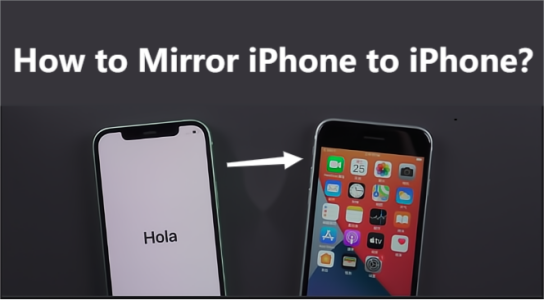
Want to share your iPhone screen with another iPhone? While AirPlay doesn't support this feature, there are other easy ways to mirror your screen. Whether for entertainment or work, this guide covers alternative methods to mirror iPhone to iPhone using third-party tools.

Can You Mirror iPhone to iPhone?
You can mirror an iPhone screen to another iPhone, but not using Apple’s built-in AirPlay feature alone, as AirPlay does not support iPhone-to-iPhone mirroring directly.
AirPlay is a built-in feature of the iPhone and other Apple devices. So, many people assume that they can use it to mirror iPhone to iPhone. However, Apple doesn't offer a native feature for mirroring between iPhones. Apple's AirPlay technology is designed to stream or mirror an iPhone's screen to larger devices like Apple TV, AirPlay-compatible smart TVs, or Mac computers.
Instead, the most practical options rely on third-party apps or FaceTime screen sharing.
How to Screen Share iPhone to iPhone?
FaceTime screen sharing allows users to display their iPhone or iPad screen to others during a FaceTime call. This feature, available since iOS 15.1 and iPadOS 15.1, lets you share apps, webpages, photos, and more.
To share your screen, both participants need Apple devices and must be signed into iCloud. While screen sharing is active, notifications and content requiring subscriptions are not visible to the other participant.
Steps on FaceTime Screen Sharing (Native, No App Needed)
- Step 1. Requires iOS 15.1 or later on both iPhones.
- Step 2. Start a FaceTime call between the two devices.
- Step 3. Tap the Share Content button (a person with a rectangle icon) at the top.
- Step 4. Select Share My Screen and wait for the 3-second countdown.
- Step 5. The other iPhone user accepts, and your screen is shared live during the call.
- Step 6. This is the simplest way to share your screen natively without installing apps.
Why is screen share not working on FaceTime?
FaceTime screen sharing can fail due to several reasons, including network issues, outdated software, disabled SharePlay, or problems with the camera or microphone. To fix it, ensure a stable internet connection, update your device, enable SharePlay in FaceTime settings, and restart your device or FaceTime app.
How to Mirror iPhone to iPhone with Third-Party Screen Mirroring Apps?
Given that Apple's native AirPlay does not support direct screen mirroring from iPhone to iPhone, third-party applications have become the key solution for achieving this functionality. These apps enable cross-device screen sharing by leveraging various network protocols and software capabilities, often offering additional features beyond basic mirroring.
Here’s a table comparing major third-party screen mirroring apps, helping users quickly evaluate their features, compatibility, performance, and pricing to make an informed choice based on their needs:
| App Name | Key Features (Focused on iPhone to iPhone) | Compatibility (Sender/Receiver OS) | Connection Method | Pricing Model | Performance (Latency/Quality) | Remote Control Ability | Direct iPhone-to-iPhone Mirroring Support | Overall User Rating/ Stability Note |
|---|---|---|---|---|---|---|---|---|
| AirDroid Cast | Cast iOS/Android/PC screen, browser casting, AirPlay receiver, USB casting, PC control for iOS/Android, two-way audio, multi-screen mirroring | iOS, Android, Windows, macOS, web browsers | Wi-Fi (local/remote), Internet, USB | Free (basic version), paid (full control) | Low latency, HD/4K (premium version), slight delay reported by some users | Yes (PC to iOS/Android) | Yes (via casting code, USB, AirPlay service) | Reliable, highly praised, suitable for various scenarios |
| ApowerMirror | Screen recording, screenshot, notes, multi-device mirroring, PC-to-phone mirroring, device-to-device mirroring | iOS, Android, Windows, macOS, TV | Wi-Fi (iPhone to iPhone requires same network), USB (to PC) | Free trial, paid | Some latency, unstable, but recent reviews mention smoother performance, paid version up to 4K | Yes (PC to iOS/Android) | Yes (requires same Wi-Fi) | Versatile features but mixed stability reviews; suitable for various use cases |
| LetsView | Whiteboard, screen recording | iOS, Android, Windows, macOS, TV | Wi-Fi (same network) | Free | Stable mirroring, good image, low latency | No | Yes (requires same Wi-Fi) | User-friendly, suitable for education/business, free |
| DeskIn | Whiteboard, calls, custom control layout, external game controller | iOS, Android, Windows, macOS | Internet (remote), Wi-Fi | Free (up to 3 devices, including business use) | High performance (4K 60FPS / 144fps, 2K), low latency, stable on mobile networks | Yes | Yes (via cross-platform support and mirroring focus hints) | Best for high-performance needs, easy setup, versatile features |
FAQs about Mirroring iPhone to iPhone
Part 4: Final Verdict
The methods described above are both great for screen mirroring between iPhones and the AirDroid Cast is highly recommended as it supports a lot of features that allow you to carry out this task, its web version allows you to screen mirror from one iPhone to another for free.
Before considering these third-party apps, you should carry out some research, as some of them will require you to make in-app purchases before screen mirroring successfully.


Leave a Reply.