How to Cast Google Photos to TV from Any Device (2024)
Since its debut on the mobile market, Google Photos has taken over and is ranked as one of the top gallery replacements and cloud storage platforms for all your photo and video content.
Anything you save on your Google Photos on your phone, will automatically upload and be stored on the cloud so you can access it from any device using the same account.
But what if you want to share some photos and videos in TV? Well luckily, there are methods to cast Google Photos to a TV easily, including an excellent built-in Google Photos feature!
Part 1: Cast Google Photos to TV with Chromecast
The first method to cast Google Photos to Samsung TVs and other TV brands is by using the Chromecast feature.
Most brands have their versions of Chromecast TVs, including Sharp, VIZIO, Toshiba, Philips, and Skyworth. But smart TVs using other OSes like the stock Samsung, Sony, or LG operating systems can also support Chromecast casting capability. You’ll need to check your TV model online to see if it supports the feature.
However, if your TV doesn’t support Chromecast casting, you have an alternative solution; the physical Chromecast streaming media player. If your TV doesn’t have Chromecast capability or is not a ‘smart’ TV, connecting a Chromecast media player will solve your problem. There are a bunch of models to choose from in different budgets, so check out Google’s Chromecast site to learn more.
As long as your TV supports Chromecast, you should be able to use this method. Once you’ve got the two above requirements met, here’s how to cast Google Photos to a TV from your mobile device or PC:
How to Cast Google Photos to TV from Android/iPhone/iPad
First up, we’ll show you how to cast Google Photos content to a TV from your mobile device. The good news is this method works on both iOS and Android, so it will work regardless of platform.
Make sure your TV supports Chromecast and is connected to the same Wi-Fi network as your mobile device. Then follow the steps below to start casting your phone to TV:
- Step 1.Download/open the Google Photos, then Sign in to your Google account with the photos/videos you want to share on your TV.
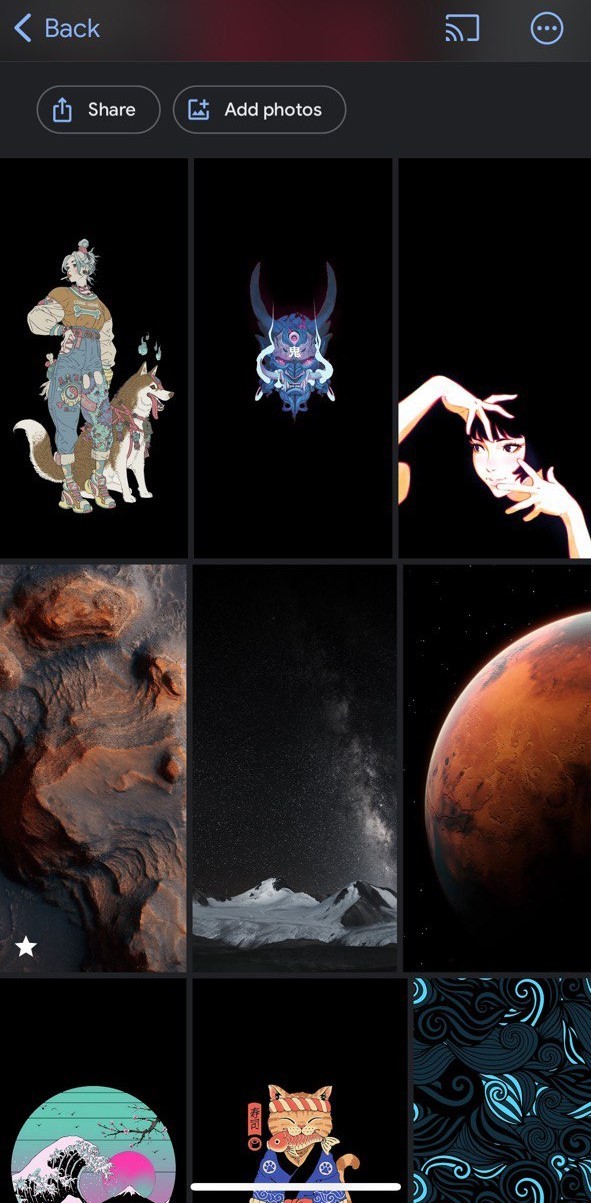
- Step 2.Select a photo/video or an album you’d like to share.

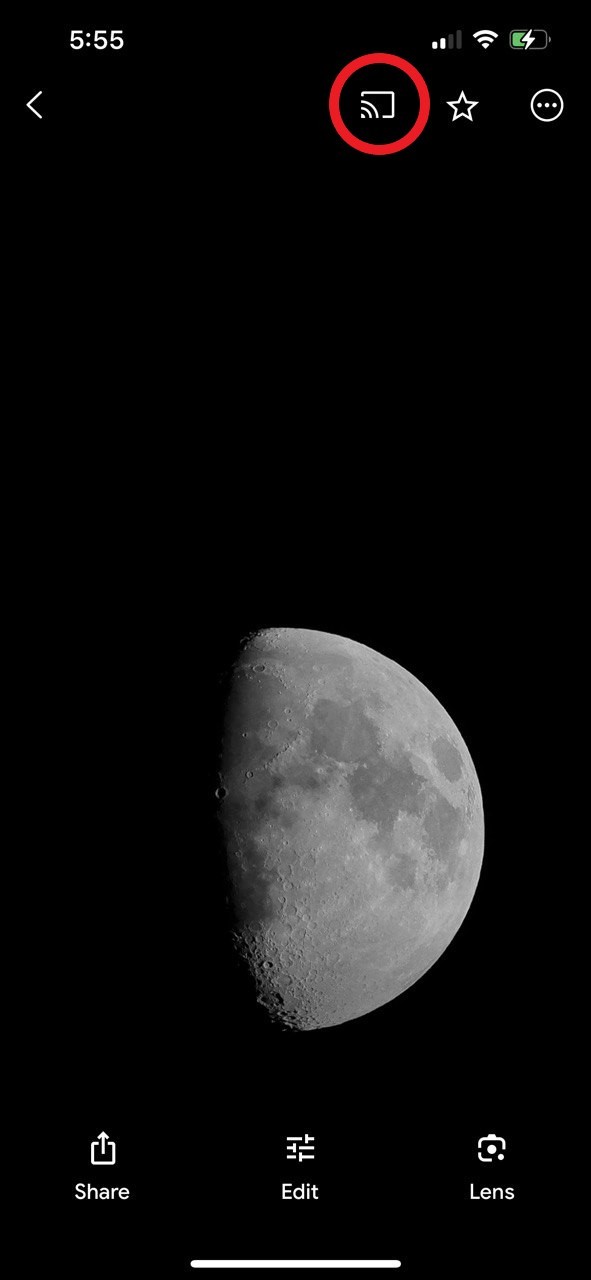
- Step 3.In the top-right corner of the app, select the ‘Cast’ button.

- Step 4.Allow any pop-ups/required permissions to allow the connection to your smart TV.
- Step 5.Select your smart TV or Chromecast dongle from the list.
- Step 6.Wait a few seconds for the two to connect.
- Step 7.You should notice your TV now displaying your Google Photos photo/video/album!
How to Cast Google Photos to TV from a Computer
Alternatively, if you’d like to cast Google Photos to TV with your computer instead, there is a way to do that as well. However, there’s no specific ‘cast’ function on the Google Photos site and instead, you’ll be mirroring your PC’s screen.
But you can choose to mirror the entire desktop screen or a specific app/window depending on your preferences.
All computers have access to this method, regardless of platform, including macOS, Windows, Linux, and ChromeOS. To use this method, you’ll need the Google Chrome web browser on your PC, and both your PC and TV need to be on the same Wi-Fi network.
Then follow these steps:
- Step 1.Turn on your smart TV and open Google Chrome on your PC.
- Step 2.Select the ‘Customize and control Google Chrome’ button denoted by the ‘⁝’ in the top-right corner of the Google Chrome window.
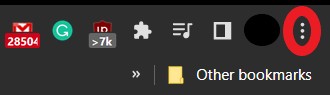

- Step 3.Click on ‘Save and share’.
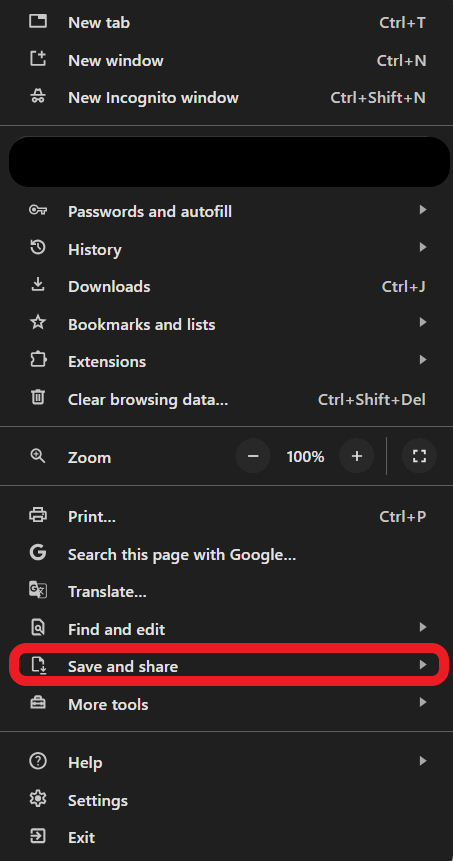

- Step 4.Select ‘Cast…’ under the ‘Share’ section. Select ‘Sources’ and choose whether to cast the entire screen or cast a browser/app tab.
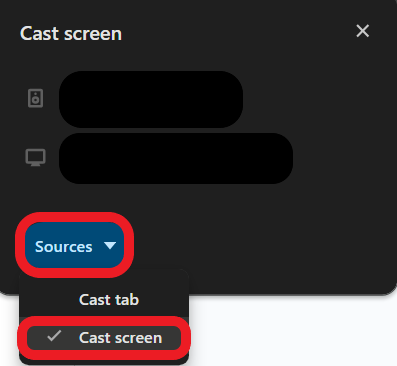

- Step 5.Select your smart TV from the list.
- Step 6. Once you’ve started mirroring your PC to your TV, open the Google Photos site to start sharing photos, videos, or albums!
Part 2: Cast Google Photos to TV without Chromecast
If you’d prefer an alternative method to Chromecast, luckily, there are a few great options to try out. Depending on your device, there are two built-in casting options on Android/Windows and iOS/macOS devices.
And if you need a more flexible alternative than these two options, we’ve got one great third-party solution for you!
AirPlay
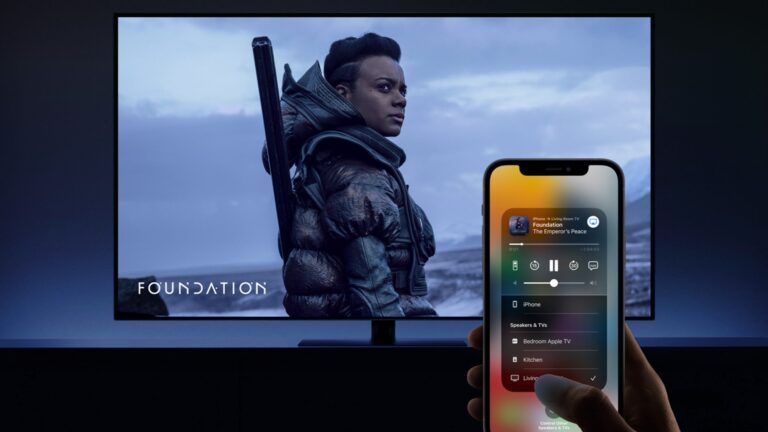
For iOS and macOS users, instead of connecting to your TV using the Google Photos app, you can instead use AirPlay to cast or mirror content to your smart TV. AirPlay is Apple’s equivalent of Chromecast casting and works largely the same.
The difference is it’s limited to Apple’s devices and supported displays in their ecosystem. To use this method, your smart TV needs to support AirPlay 2 capability. Most smart TVs released after 2018 will allow AirPlay 2 connections.
But if your TV is older than that, then there’s a good chance it doesn’t support AirPlay 2 unless the manufacturer patched in the functionality on an OS update. Check through your TV’s settings to find any settings for ‘AirPlay & Homekit’ or similar.
This works for both Mac PCs and iPhones/iPads as long as the TV supports AirPlay 2 and is on the same Wi-Fi network. Open the Control Centre on your Mac/iOS device and select the ‘Screen Mirroring’ option. Select your smart TV to start mirroring to it.
Miracast
Besides Chromecast, many Android phones and Windows PCs also support Miracast screen mirroring. This is a built-in functionality to most modern PCs and Android devices, but it can be named differently depending on your device’s manufacturer and OS.
Miracast is more widely available than Chromecast and AirPlay and almost every smart TV supports the casting protocol. This is a great option especially if you have an older smart TV with limited casting support.
To use Miracast, access the ‘Quick Settings’ panel on your Windows PC or your Android device. Find the ‘Cast’ option in the Quick Settings panel. Select your smart TV from the list to begin mirroring.
AirDroid Cast
The last Chromecast alternative to cast Google Photos to a TV is by using a third-party solution like AirDroid Cast, a dedicated and all-encompassing screen-casting software! AirDroid Cast is available on most major platforms and also supports cross-platform mirroring!
You’re not limited by platform and you can connect via a variety of methods including wired, wireless, and AirPlay connectivity! Not to mention with the AirDroid Cast Web platform, you don’t need to download any additional apps on your smart TV!
AirDroid Cast also supports 1080p resolution mirroring, in-device audio delivery, minimal lags and delays, remote casting capability, and more!
That said, if you’d like to try AirDroid Cast, here’s how to mirror your mobile device to a smart TV using the AirDroid Cast Web platform:
-
- Step 1.Download & install AirDroid Cast on your Android or iOS.
- Step 2.Open and Select the ‘Cast the Screen’ tab.
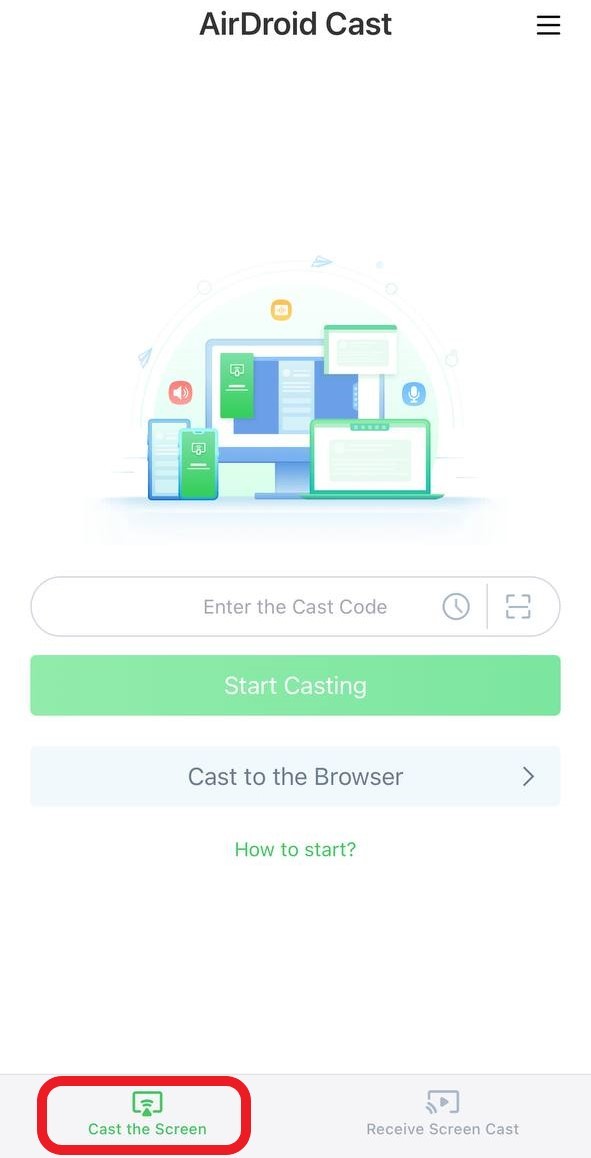

- Step 3.Turn on your smart TV and open the web browser, and open AirDroid Cast Web.
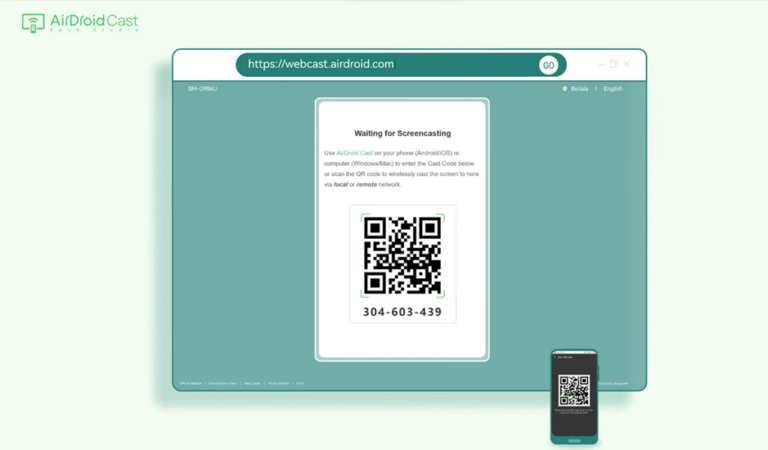

- Step 4.Use your mobile device to scan the QR code or enter the Cast Code into the AirDroid Cast app.
- Step 5.Allow AirDroid Cast access to any required permissions.
Part 3: FAQs about Google Photos Casting
Part 4: Final Words
Those are all the methods you need to know to cast Google Photos to a smart TV! Apps like Google Photos have not only made it much easier to store our cherished memories but it’s also made it simple to share those memories with your loved ones!
With this, hopefully, you’ve got a better idea of how you can get started with Google Photos casting whether it’s from the app, alternate casting protocols, or by using a versatile third-party app like AirDroid Cast!


Leave a Reply.